Part of my work at Ford Motor Company is to use Model-Based Systems Engineering
through languages like SysML to help design safety in to complex automated
and electrified technologies. In my free time I took over maintaining a UML
tool called [Gaphor](https://github.com/gaphor/gaphor) with the aim of
eventually turning it in to a simple SysML tool for beginners. I'm sure I'll
be writing about this much more in the future.
Eventually I got really frustrated with the current set of GUI toolkits that
are available for Python. I want the ability to write an app once and have it
look and feel great on all of my devices, but instead I was dealing with
toolkits that are wrapped or introspected around C or C++ libraries, or
visually look like a blast from past. They made me feel like I was going
against the grain of Python instead of writing great Pythonic code.
If you haven't heard of BeeWare yet, it is a set of software libraries for
cross-platform native app development from a single Python codebase and tools
to simplify app deployment. When I say cross-platform and native, I mean truly
that. The project aims to build, deploy, and run apps for Windows, Linux, macOS, Android,
iPhone, and the web. It is native because it is actually that platform's native
GUI widgets, not a theme, icon pack, or webpage wrapper.
A little over a year ago, I started to contribute to the BeeWare project. I
needed a canvas drawing widget for the app I am working on, I saw that this was
not supported by BeeWare, so I went ahead and created it. Based on my
experience, this blog post details how I would create a new widget from
scratch, now that I have done it before, with the hope that it helps you
implement your own widget as well.
If you are new to BeeWare, I recommend to start out with the
[Briefcase](https://briefcase.readthedocs.io/en/latest/tutorial/index.html) and
[Toga](https://toga.readthedocs.io/en/latest/tutorial/index.html) Tutorials, and
then the [First-time Contributor's Guide](https://pybee.org/contributing/how/first-time/).
The current status of the BeeWare project, at the time of writing this, is that
it is a solid proof of concept. Creating a simple app on macOS, Linux, or iOS
is definitely possible. In fact there is an app called Travel Tips on Apple's
App Store that was created by Russell Keith-Magee as a demonstration. Support
for some of the other platforms like Windows and Android is lagging behind
some, so except some very rough edges.
This alpha status may not be so exciting for you if you are just trying to
build an app, but I think it is **very** exciting for those that want to
contribute to an open source project. Although there are many ways to get
involved, users keep asking how they can build a GUI widget that isn't yet
supported. I think this is a great way to make a significant contribution.
A GUI widget forms the controls and logic that a user interacts with when using
a GUI. The BeeWare project uses a GUI widget toolkit called Toga, and below is
a view of what some of the widgets look like in Linux.
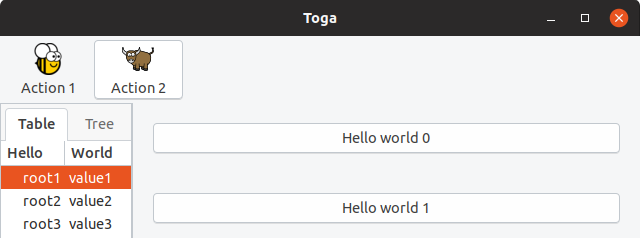
There are button, table, tree, and icon widgets in the example. Since I
contributed a canvas drawing widget, I will be using that for the example of
how you could contribute your own widget to the project.
There are three internal layers that make up every widget:
1. The **Interface** layer
2. The **Implementation** layer
3. The **Native** layer
 As the input to Toga, the Interface layer provides the public API for the GUI
application that you are building. This is the code you will type to build your
app using Toga.
As the output of Toga, the Native layer connects the Toga_impl's to the Native
Platform. For C language based platforms, Toga directly calls the native
widgets. For example with Gtk+ on Linux, the Toga_gtk directly calls the Gtk+
widgets through PyGObject. For other platforms, more intermediate work may be
required through a bridge or transpiler:
* macOS and iOS, the Rubicon-ObjC project provides a bridge between Objective-C and Python.
* Web, Batavia provides a javascript implementation of the Python virtual machine.
* Android, VOC is a transpiler that converts Python in to Java bytecode.
As the input to Toga, the Interface layer provides the public API for the GUI
application that you are building. This is the code you will type to build your
app using Toga.
As the output of Toga, the Native layer connects the Toga_impl's to the Native
Platform. For C language based platforms, Toga directly calls the native
widgets. For example with Gtk+ on Linux, the Toga_gtk directly calls the Gtk+
widgets through PyGObject. For other platforms, more intermediate work may be
required through a bridge or transpiler:
* macOS and iOS, the Rubicon-ObjC project provides a bridge between Objective-C and Python.
* Web, Batavia provides a javascript implementation of the Python virtual machine.
* Android, VOC is a transpiler that converts Python in to Java bytecode.
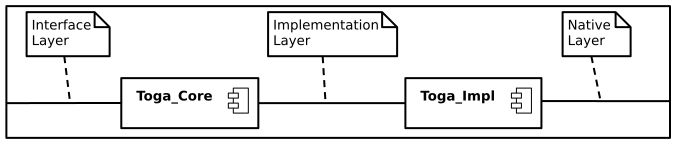 The Interface layer calls public methods that are in the Toga_core portion of
the project and this is where this Interface layer API is defined. Toga_core
also provides any abstract functionality that is independent of the platform
that Toga is running on, like setting up and running the app itself.
The Implementation layer connects Toga_core to the Toga_impl component.
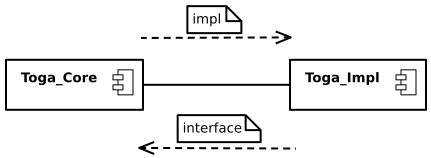
A couple of other terms you should know about are `impl` and `interface`.
1. From Toga_core, `self.impl` is used to go across the interface layer to
Toga_impl.
2. From Toga_impl, `self.interface` is used to go across the interface layer
back to Toga_core.
The Interface layer calls public methods that are in the Toga_core portion of
the project and this is where this Interface layer API is defined. Toga_core
also provides any abstract functionality that is independent of the platform
that Toga is running on, like setting up and running the app itself.
The Implementation layer connects Toga_core to the Toga_impl component.
A couple of other terms you should know about are `impl` and `interface`.
1. From Toga_core, `self.impl` is used to go across the interface layer to
Toga_impl.
2. From Toga_impl, `self.interface` is used to go across the interface layer
back to Toga_core.
 Toga uses the Factory Method design pattern in order to improve testability.
This pattern creates objects using a factory method instead of directly
calling a constructor. In Toga, this factory method is in Toga_core and it is
used to instantiate a platform backend as the Toga_impl like Toga_ios, Toga_cocoa
or Toga_gtk. The factory method automatically selects the correct backend based
on the `sys.platform` of the platform it is running on.
Toga uses the Factory Method design pattern in order to improve testability.
This pattern creates objects using a factory method instead of directly
calling a constructor. In Toga, this factory method is in Toga_core and it is
used to instantiate a platform backend as the Toga_impl like Toga_ios, Toga_cocoa
or Toga_gtk. The factory method automatically selects the correct backend based
on the `sys.platform` of the platform it is running on.
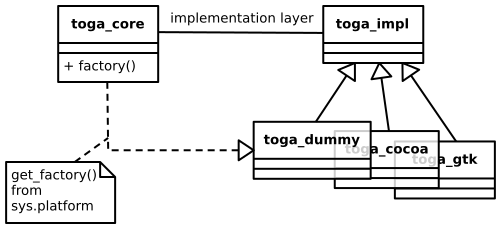 Toga_dummy is also a type of Toga_impl backend, and it is used for smoke testing
without a specific platform to find simple failures. When tests are initialized,
Toga_dummy is passed in as the factory. This allows the tests and the creation
of objects to be separated which improves maintainability and makes the test
code easier to read.
I know there is a lot there, but understanding the software architecture of
Toga together with the surrounding projects and interfaces will be key to
implementing your own widget. With that background information out of the way,
lets not delay any further, and jump in to building a widget.
# Step 0
## Pick your development platform
* Normally pick the platform that you are most familiar with
* macOS and Gtk+ are the most developed :thumbsup:
* Is this a mobile only widget (camera, GPS, etc)?
This seems somewhat obvious, since the platform you select will most likely be
based on the laptop or other device you are using right now. But do consider
this. Most of my experience developing widgets are on Gtk+ and Cocoa so this is
where I am coming from. Implementing widgets on other platforms is definitely
needed as well, but it may be an additional challenge due to those platforms
not as well developed with Toga yet. These other platforms may be more
challenging, but they are also the areas where the BeeWare project needs the
most help, so if you have some experience with them or feel especially brave,
definitely go for it.
# Step 1
## Research your widget
* Abstraction requires knowledge of specific examples
* Create use cases or user stories
* Get feedback
Since Toga is an abstraction of native GUI toolkits, understanding the APIs for
these platforms is extremely important in order to develop a well abstracted API
for Toga. In other words, these native platforms provide the inspiration and
constraints on implementing your own widget.
As an example, of how you would conduct this research, this is how you would
draw a rectangle on a Canvas on different platforms:
* Tkinter
```Python
canvas = tk.Canvas()
canvas.create_rectangle(10, 10, 100, 100, fill="red")
canvas.pack()
```
* wxpython
```Python
wx.Panel.Bind(wx.EVT_PAINT, OnPaint)
def OnPaint(self, evt):
dc = wx.PaintDC()
dc.SetBrush(wx.Brush(wx.Colour(200, 0, 0)))
dc.DrawRectangle(10, 10, 100, 100)
```
* HTML canvas
```javascript
var c = document.getElementById("myCanvas");
var ctx = c.getContext("2d");
ctx.fillStyle = "rgb(200, 0, 0)";
ctx.fillRect(10, 10, 100, 100);
```
* Gtk+
```Python
drawingarea = Gtk.DrawingArea()
drawingarea.connect("draw", draw)
def draw(da, ctx):
ctx.set_source_rgb(200, 0, 0)
ctx.rectangle(10, 10, 100, 100)
ctx.fill()
```
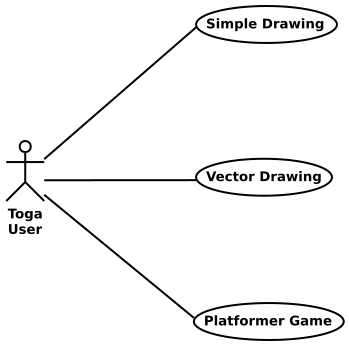
The other thing to understand is how a user will use this widget to build their
own app. I like to create a quick Use Case diagram to flush this out, but you
could also use User Stories or similar methods.
For the case of the Canvas widget, I came up with three main use cases:
1. A simple drawing app, where a user adds shapes, colors, and text to the
screen.
2. A vectoring drawing app, where a user draws lines and shapes, and then needs
the ability to edit the nodes of the lines.
3. A platformer game, where there is a lot of objects draw on the screen,
including the hero. The hero needs its own drawing context so that they can
run, jump, and move around without unintentionally modifying the rest of the
objects.
Toga_dummy is also a type of Toga_impl backend, and it is used for smoke testing
without a specific platform to find simple failures. When tests are initialized,
Toga_dummy is passed in as the factory. This allows the tests and the creation
of objects to be separated which improves maintainability and makes the test
code easier to read.
I know there is a lot there, but understanding the software architecture of
Toga together with the surrounding projects and interfaces will be key to
implementing your own widget. With that background information out of the way,
lets not delay any further, and jump in to building a widget.
# Step 0
## Pick your development platform
* Normally pick the platform that you are most familiar with
* macOS and Gtk+ are the most developed :thumbsup:
* Is this a mobile only widget (camera, GPS, etc)?
This seems somewhat obvious, since the platform you select will most likely be
based on the laptop or other device you are using right now. But do consider
this. Most of my experience developing widgets are on Gtk+ and Cocoa so this is
where I am coming from. Implementing widgets on other platforms is definitely
needed as well, but it may be an additional challenge due to those platforms
not as well developed with Toga yet. These other platforms may be more
challenging, but they are also the areas where the BeeWare project needs the
most help, so if you have some experience with them or feel especially brave,
definitely go for it.
# Step 1
## Research your widget
* Abstraction requires knowledge of specific examples
* Create use cases or user stories
* Get feedback
Since Toga is an abstraction of native GUI toolkits, understanding the APIs for
these platforms is extremely important in order to develop a well abstracted API
for Toga. In other words, these native platforms provide the inspiration and
constraints on implementing your own widget.
As an example, of how you would conduct this research, this is how you would
draw a rectangle on a Canvas on different platforms:
* Tkinter
```Python
canvas = tk.Canvas()
canvas.create_rectangle(10, 10, 100, 100, fill="red")
canvas.pack()
```
* wxpython
```Python
wx.Panel.Bind(wx.EVT_PAINT, OnPaint)
def OnPaint(self, evt):
dc = wx.PaintDC()
dc.SetBrush(wx.Brush(wx.Colour(200, 0, 0)))
dc.DrawRectangle(10, 10, 100, 100)
```
* HTML canvas
```javascript
var c = document.getElementById("myCanvas");
var ctx = c.getContext("2d");
ctx.fillStyle = "rgb(200, 0, 0)";
ctx.fillRect(10, 10, 100, 100);
```
* Gtk+
```Python
drawingarea = Gtk.DrawingArea()
drawingarea.connect("draw", draw)
def draw(da, ctx):
ctx.set_source_rgb(200, 0, 0)
ctx.rectangle(10, 10, 100, 100)
ctx.fill()
```
The other thing to understand is how a user will use this widget to build their
own app. I like to create a quick Use Case diagram to flush this out, but you
could also use User Stories or similar methods.
For the case of the Canvas widget, I came up with three main use cases:
1. A simple drawing app, where a user adds shapes, colors, and text to the
screen.
2. A vectoring drawing app, where a user draws lines and shapes, and then needs
the ability to edit the nodes of the lines.
3. A platformer game, where there is a lot of objects draw on the screen,
including the hero. The hero needs its own drawing context so that they can
run, jump, and move around without unintentionally modifying the rest of the
objects.
 The last part of Step 1 is to get feedback. I recommend creating a GitHub Issue
or Draft Pull Request at this point and start to discuss the design of your
widget abstraction with others and continue that discussion as you design your
python API in step 2.
# Step 2
## Write Docs
* Write your API documentation first
* The API provides the set of clearly defined methods of communication (layers) between the software components
* Documentation Driven Development
* This is iterative with Step 1
With your Use Cases from Step 1, start your docs by explaining what your widget
is and what it is used for. When looking at the Canvas widgets from my research,
I noticed that the current drawing widgets were very procedural, you have to
create your canvas drawing using many steps. For example, you have to first set
the color to draw with, then draw an object, and then fill in that object.
Python has the context manager and the "with" statement, and making use of this
for a canvas allows the user to better break up the draw operations with some
nesting. It also allows for automatically starting or closing drawing of a
closed path for the user. This is an example of the types of things that you
can take advantage of in an API that was designed for Python. It is easy to try
to copy the API that you are familiar with, but I think you can really make
your widget stand out by taking a step back and looking at how you can make an
API that users will really enjoy using.
Here is an example of writing the initial explanation and widget API for the
canvas widget:
```md
The canvas is used for creating a blank widget that you can
draw on.
Usage
--
Simple usage to draw a colored rectangle on the screen using
the arc drawing object:
import toga
canvas = toga.Canvas(style=Pack(flex=1))
with canvas.fill(color=rgb(200, 0, 0)) as fill:
fill.rect(10, 10, 100, 100)
```
Once that is complete, now might be a good time to ask for feedback to see if
you have missed any use cases or if others have any ideas of how to improve the
public API of the widget. One way to collect feedback would be to submit an
issue or a "work in progress" pull request to the [Toga
project](https://github.com/pybee/Toga), or ask for feedback on the [Gitter
channel](https://gitter.im/pybee/general).
Next, start to work out the structure of your Toga_core code based on your API.
I recommend creating the class and method definitions and add the docstrings to
outline what each portion of the software does and what arguments and return
values it provides. This is part of the overall documentation that will be
generated by Sphinx for your widget, and creating this before writing your code
will provide the next level of API documentation.
Here is an example of how that structure and docstrings would look for a canvas
widget:
```python
class Canvas(Context, Widget):
"""Create new canvas.
Args:
id (str): An identifier for this widget.
style (:obj:`Style`): An optional style object.
factory (:obj:`module`): A python module that is
capable to return a implementation of this class.
"""
```
```python
def rect(self, x, y, width, height):
"""Constructs and returns a :class:`Rect `.
Args:
x (float): x coordinate for the rectangle.
...
"""
```
# Step 3
## Implement your Toga_core widget using TDD
* Write a test for each function of the widget outlined in the API from Step 3
* Check that the tests fail
* Specify the implementation layer API
* Write the core code for the widget to call the implementation layer
Test Driven Development is a test-first technique to write your tests prior to
or in parallel with writing the software. I am being opinionated here,
because you don't have to write your code using this process. But, I think
this will really help you think about what you want from the code as you
implement these different API layers.
Toga_core has a "tests" folder, and this is where you need to create your tests
for the widget. Sometimes it can be challenging to know what tests to write, but
in the previous step you already outlined what the use cases and scenarios are for
using your widget, and the API to make use of the widget. Break this up in to atomic
tests to check that you can successfully create the widget, and then make use of and
modify the widget using all of the outlined scenarios.
Here is a test to check that the widget is created. The ```canvas._impl.interface```
is testing the call to the Toga_impl component ("_impl") and then back to the
Toga_core component ("interface"). In other words we are testing that the canvas object
is the same object as we go to the Implementation layer to the Toga_impl and
then back across the Implementation layer to the Toga_core. The object should be
equal as long as it was created successfully. The second line of the test
```assertActionPerformed``` is using the dummy backend to test that the canvas was
created, and I'll discuss that more in Step 4 below.
```Python
def test_widget_created():
assertEqual(canvas._impl.interface, canvas)
self.assertActionPerformed(canvas, "create Canvas")
```
Further along in my test creation I also wanted to check that the user could modify
a widget that was already created. So I created a test that modifies the coordinates
and size of a rectangle.
```Python
def test_rect_modify():
rect = canvas.rect(-5, 5, 10, 15)
rect.x = 5
rect.y = -5
rect.width = 0.5
rect.height = -0.5
canvas.redraw()
self.assertActionPerformedWith(
canvas, "rect", x=5, y=-5, width=0.5, height=-0.5
)
```
Once you are done creating your tests and make sure that they are failing as
expected, it is time to move on to filling in all of those Toga_core classes
and objects that you left blank in the previous step.
Toga provides a base Widget class that all widgets derive from. It defines the
interface for core functionality for children, styling, layout and ownership by
specific App and Window. Below our class Canvas is derived from Widget and is
initialized:
```Python
class Canvas(Widget):
def __init__(self, id=None, style=None, factory=None):
super().__init__(id=id, style=style, factory=factory)
```
As part of the class initialization, Toga also uses the factory method to
determine the correct Toga_impl platform, and then connect it from the
Toga_core to Toga_impl```self._impl``` and back the other way using
```interface=self```:
```Python
# Create a platform specific implementation of Canvas
self._impl = self.factory.Canvas(interface=self)
```
Finally, we fill in our methods to call the creation of the rectangle on the
Toga_impl component using the Implementation layer:
```Python
def rect(self, x, y, width, height):
self._impl.rect(
self.x, self.y, self.width, self.height
)
```
# Step 4
## Implement the Toga_impl widget on the dummy backend
* Dummy is for automatic testing without a native platform
* Code the implementation layer API endpoint, create a method for each call of the API
* Check that all tests now pass
When your widget is integrated with Toga, we want unit tests to run with the
test suite automatically during continuous integration. It may be difficult
during these tests to start up every platform and check that your widget is
working correctly, so there is a Toga_impl called dummy that doesn't require a
platform at all. This allows for smoke testing to make sure that the widget
correctly calling the Implementation layer API.
Now go ahead and implement the Toga_impl widget on the dummy backend. There
needs to be methods for each call from the Toga_core to the Toga_impl. Below we
check that the Canvas create and rect method actions were invoked through
Implementation layer API calls.
```Python
class Canvas(Widget):
def create(self):
self._action("create Canvas")
def rect(self, x, y, width, height):
self._action(
"rect", x=x, y=y, width=width, height=height
)
```
You now should be able to run and pass all the tests that you created in Step 3.
# Step 5
## Implement the Toga_impl widget on your platform backend
* Copy toga_dummy and create a new endpoint for the platform you chose in Step 1
* Make use of the native interface API for this widget on your platform
If after your research in Step 1, you aren't feeling confident in how the widget
should work on your platform, now would be a good time to take a break to go
practice. Build a simple canvas drawing app for your platform using the native
widgets. Once you have done that, now is the time to create the Toga_impl for
your platform that calls those native widgets on your platform.
In my example, Gtk+ uses an event callback to do native drawing. So I create a
Gtk.DrawingArea to draw on when my Canvas widget is created, and then I connect
that drawing callback to the gtk_draw_callback function which then calls a method
in Toga_core through the Implementation layer:
```Python
class Canvas(Widget):
def create(self):
self.native = Gtk.DrawingArea()
self.native.interface = self.interface
self.native.connect("draw", self.gtk_draw_callback)
def gtk_draw_callback(self, canvas, gtk_context):
self.interface._draw(self, draw_context=gtk_context)
```
Some platforms like Android or Cocoa will require transpiling or bridging to
the native platform calls since those platforms using a different programming
language. This may require the creation of extra native objects to, for
example, reserve memory on those platforms. Here is an example of what this
extra TogaCanvas class would like with the Cocoa platform:
```Python
class TogaCanvas(NSView):
@objc_method
def drawRect_(self, rect: NSRect) -> None:
context = NSGraphicsContext.currentContext.graphicsPort()
```
Finally create each method for your native implementation. Below we create an
implementation of the rectangle creation that calls Gtk+'s cairo drawing:
```Python
def rect(self, x, y, width, height, draw_context):
draw_context.rectangle(x, y, width, height)
```
# Iterate
### Iterate through steps 1-5 to complete your widget implementation
In the examples, we created a Canvas and a rectangle drawing operation on that
canvas. Now it is time to iterate back through all the steps and implement all
the other drawing operations that a Canvas needs like the other shapes, lines,
and text. Once you finish this, you should now have a complete widget!
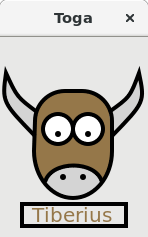
Tada! You did it, Submit a PR!
I would be interested in how it goes for you, drop me a line with your
experience creating a widget.
2018-11-10: Minor editorial updates.
2019-04-27: Split Toga Architecture diagram up to make it more clear.
2019-05-02: Improve description about research in Step 1. Add description of
`impl` and `interface` in architecture section.
The last part of Step 1 is to get feedback. I recommend creating a GitHub Issue
or Draft Pull Request at this point and start to discuss the design of your
widget abstraction with others and continue that discussion as you design your
python API in step 2.
# Step 2
## Write Docs
* Write your API documentation first
* The API provides the set of clearly defined methods of communication (layers) between the software components
* Documentation Driven Development
* This is iterative with Step 1
With your Use Cases from Step 1, start your docs by explaining what your widget
is and what it is used for. When looking at the Canvas widgets from my research,
I noticed that the current drawing widgets were very procedural, you have to
create your canvas drawing using many steps. For example, you have to first set
the color to draw with, then draw an object, and then fill in that object.
Python has the context manager and the "with" statement, and making use of this
for a canvas allows the user to better break up the draw operations with some
nesting. It also allows for automatically starting or closing drawing of a
closed path for the user. This is an example of the types of things that you
can take advantage of in an API that was designed for Python. It is easy to try
to copy the API that you are familiar with, but I think you can really make
your widget stand out by taking a step back and looking at how you can make an
API that users will really enjoy using.
Here is an example of writing the initial explanation and widget API for the
canvas widget:
```md
The canvas is used for creating a blank widget that you can
draw on.
Usage
--
Simple usage to draw a colored rectangle on the screen using
the arc drawing object:
import toga
canvas = toga.Canvas(style=Pack(flex=1))
with canvas.fill(color=rgb(200, 0, 0)) as fill:
fill.rect(10, 10, 100, 100)
```
Once that is complete, now might be a good time to ask for feedback to see if
you have missed any use cases or if others have any ideas of how to improve the
public API of the widget. One way to collect feedback would be to submit an
issue or a "work in progress" pull request to the [Toga
project](https://github.com/pybee/Toga), or ask for feedback on the [Gitter
channel](https://gitter.im/pybee/general).
Next, start to work out the structure of your Toga_core code based on your API.
I recommend creating the class and method definitions and add the docstrings to
outline what each portion of the software does and what arguments and return
values it provides. This is part of the overall documentation that will be
generated by Sphinx for your widget, and creating this before writing your code
will provide the next level of API documentation.
Here is an example of how that structure and docstrings would look for a canvas
widget:
```python
class Canvas(Context, Widget):
"""Create new canvas.
Args:
id (str): An identifier for this widget.
style (:obj:`Style`): An optional style object.
factory (:obj:`module`): A python module that is
capable to return a implementation of this class.
"""
```
```python
def rect(self, x, y, width, height):
"""Constructs and returns a :class:`Rect `.
Args:
x (float): x coordinate for the rectangle.
...
"""
```
# Step 3
## Implement your Toga_core widget using TDD
* Write a test for each function of the widget outlined in the API from Step 3
* Check that the tests fail
* Specify the implementation layer API
* Write the core code for the widget to call the implementation layer
Test Driven Development is a test-first technique to write your tests prior to
or in parallel with writing the software. I am being opinionated here,
because you don't have to write your code using this process. But, I think
this will really help you think about what you want from the code as you
implement these different API layers.
Toga_core has a "tests" folder, and this is where you need to create your tests
for the widget. Sometimes it can be challenging to know what tests to write, but
in the previous step you already outlined what the use cases and scenarios are for
using your widget, and the API to make use of the widget. Break this up in to atomic
tests to check that you can successfully create the widget, and then make use of and
modify the widget using all of the outlined scenarios.
Here is a test to check that the widget is created. The ```canvas._impl.interface```
is testing the call to the Toga_impl component ("_impl") and then back to the
Toga_core component ("interface"). In other words we are testing that the canvas object
is the same object as we go to the Implementation layer to the Toga_impl and
then back across the Implementation layer to the Toga_core. The object should be
equal as long as it was created successfully. The second line of the test
```assertActionPerformed``` is using the dummy backend to test that the canvas was
created, and I'll discuss that more in Step 4 below.
```Python
def test_widget_created():
assertEqual(canvas._impl.interface, canvas)
self.assertActionPerformed(canvas, "create Canvas")
```
Further along in my test creation I also wanted to check that the user could modify
a widget that was already created. So I created a test that modifies the coordinates
and size of a rectangle.
```Python
def test_rect_modify():
rect = canvas.rect(-5, 5, 10, 15)
rect.x = 5
rect.y = -5
rect.width = 0.5
rect.height = -0.5
canvas.redraw()
self.assertActionPerformedWith(
canvas, "rect", x=5, y=-5, width=0.5, height=-0.5
)
```
Once you are done creating your tests and make sure that they are failing as
expected, it is time to move on to filling in all of those Toga_core classes
and objects that you left blank in the previous step.
Toga provides a base Widget class that all widgets derive from. It defines the
interface for core functionality for children, styling, layout and ownership by
specific App and Window. Below our class Canvas is derived from Widget and is
initialized:
```Python
class Canvas(Widget):
def __init__(self, id=None, style=None, factory=None):
super().__init__(id=id, style=style, factory=factory)
```
As part of the class initialization, Toga also uses the factory method to
determine the correct Toga_impl platform, and then connect it from the
Toga_core to Toga_impl```self._impl``` and back the other way using
```interface=self```:
```Python
# Create a platform specific implementation of Canvas
self._impl = self.factory.Canvas(interface=self)
```
Finally, we fill in our methods to call the creation of the rectangle on the
Toga_impl component using the Implementation layer:
```Python
def rect(self, x, y, width, height):
self._impl.rect(
self.x, self.y, self.width, self.height
)
```
# Step 4
## Implement the Toga_impl widget on the dummy backend
* Dummy is for automatic testing without a native platform
* Code the implementation layer API endpoint, create a method for each call of the API
* Check that all tests now pass
When your widget is integrated with Toga, we want unit tests to run with the
test suite automatically during continuous integration. It may be difficult
during these tests to start up every platform and check that your widget is
working correctly, so there is a Toga_impl called dummy that doesn't require a
platform at all. This allows for smoke testing to make sure that the widget
correctly calling the Implementation layer API.
Now go ahead and implement the Toga_impl widget on the dummy backend. There
needs to be methods for each call from the Toga_core to the Toga_impl. Below we
check that the Canvas create and rect method actions were invoked through
Implementation layer API calls.
```Python
class Canvas(Widget):
def create(self):
self._action("create Canvas")
def rect(self, x, y, width, height):
self._action(
"rect", x=x, y=y, width=width, height=height
)
```
You now should be able to run and pass all the tests that you created in Step 3.
# Step 5
## Implement the Toga_impl widget on your platform backend
* Copy toga_dummy and create a new endpoint for the platform you chose in Step 1
* Make use of the native interface API for this widget on your platform
If after your research in Step 1, you aren't feeling confident in how the widget
should work on your platform, now would be a good time to take a break to go
practice. Build a simple canvas drawing app for your platform using the native
widgets. Once you have done that, now is the time to create the Toga_impl for
your platform that calls those native widgets on your platform.
In my example, Gtk+ uses an event callback to do native drawing. So I create a
Gtk.DrawingArea to draw on when my Canvas widget is created, and then I connect
that drawing callback to the gtk_draw_callback function which then calls a method
in Toga_core through the Implementation layer:
```Python
class Canvas(Widget):
def create(self):
self.native = Gtk.DrawingArea()
self.native.interface = self.interface
self.native.connect("draw", self.gtk_draw_callback)
def gtk_draw_callback(self, canvas, gtk_context):
self.interface._draw(self, draw_context=gtk_context)
```
Some platforms like Android or Cocoa will require transpiling or bridging to
the native platform calls since those platforms using a different programming
language. This may require the creation of extra native objects to, for
example, reserve memory on those platforms. Here is an example of what this
extra TogaCanvas class would like with the Cocoa platform:
```Python
class TogaCanvas(NSView):
@objc_method
def drawRect_(self, rect: NSRect) -> None:
context = NSGraphicsContext.currentContext.graphicsPort()
```
Finally create each method for your native implementation. Below we create an
implementation of the rectangle creation that calls Gtk+'s cairo drawing:
```Python
def rect(self, x, y, width, height, draw_context):
draw_context.rectangle(x, y, width, height)
```
# Iterate
### Iterate through steps 1-5 to complete your widget implementation
In the examples, we created a Canvas and a rectangle drawing operation on that
canvas. Now it is time to iterate back through all the steps and implement all
the other drawing operations that a Canvas needs like the other shapes, lines,
and text. Once you finish this, you should now have a complete widget!

Tada! You did it, Submit a PR!
I would be interested in how it goes for you, drop me a line with your
experience creating a widget.
2018-11-10: Minor editorial updates.
2019-04-27: Split Toga Architecture diagram up to make it more clear.
2019-05-02: Improve description about research in Step 1. Add description of
`impl` and `interface` in architecture section.